


The rich text editor used in the DESAN software is the Quill editor, referred to here as the Quill editor.
(Question) texts can be edited using this editor, which allows formatting such as bold and underlined text, as well as the addition of images, links, and more.

See the image above. The icons in the top row represent standard actions commonly found in applications such as Microsoft Word, so they are not explained here—except for the option to insert a link. The remaining buttons are described below.
Soft hyphen – ­
Long words may not be displayed correctly on mobile devices. As a result, sentences may break in unexpected places, or parts of a word may not be clearly visible. This can be resolved by adding ­ to the text. This code represents a soft hyphen: the word is broken at that position when necessary, while the soft hyphen remains invisible when no line break is required.

Insert a link
In addition to inserting a standard link into text, it is also possible to link to a content page, the unsubscribe page, the login page, documents, or an individual report. Links to reports are typically added on the final page of a questionnaire, while links to content pages are useful when providing respondents with additional information during the login process.

Insert an image
When this icon is selected, the image bank is opened. The desired image can then be selected and inserted.
After an image from the image bank has been added, a pop-up is displayed in which a descriptive text can be entered. This text is used by screen readers and other digital accessibility tools. A dark mode version of the image can also be added. This version will be displayed when a respondent uses dark mode.
After the image has been inserted, its size and text wrapping can be adjusted. When the image is selected, a small menu is displayed with options for text wrapping and other settings. An outline is also displayed around the image, allowing its size to be adjusted.

Insert a video
This can be used to display a video, instructions, or contextual information to the respondent. When this icon is selected, a dialog is opened in which a link to an embedded video can be entered, for example from platforms such as YouTube or Vimeo. The maximum display size, start time, and text wrapping can subsequently be adjusted in the rich text editor.
It should be noted that videos are embedded using an iframe, which may potentially pose a security risk. Allowed domains can be added in the iframe settings part of the Templates/Themes section.

Insert an expression
Instead of entering plain text, an expression can be added. This is particularly useful when calculations are required. If both fixed text and calculated text are needed, it is recommended to create two separate Text nodes.
Clicking the icon opens the Query builder, where the expression can be defined. The image below shows a simple example in which the text of the question “expr” is modified.


Insert an icon
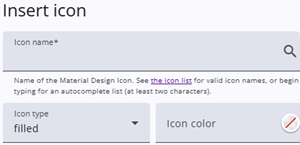
The full set of available icons can be displayed within the question text or alongside the categories.
When this icon is clicked, a window opens where an icon can be selected from the Google Fonts icon library. Additional options, such as colour and styling, can also be configured.

Apply accessibility status role
This feature is primarily intended to support screen readers. It adds an additional marker that alerts users when part of the text has been updated. By selecting a portion of text and clicking the icon, these accessibility enhancements are applied to the chosen content.

Insert the answer of an open question
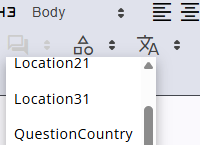
A reference to an open question can be inserted into the text by clicking this icon and selecting the relevant question. This will create a placeholder such as {{question}}.
When the text is displayed, the placeholder is automatically replaced with the respondent’s answer.
This is particularly useful when referring back to a previous response. For example: “Why did you answer {{question}}?” would be shown to the respondent as “Why did you answer not satisfied?” once their answer is inserted.

Insert the value or text from a closed question answer
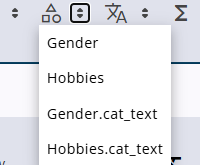
This works in the same way as a reference to an open question is inserted. However, for closed questions, either the value or the text of the selected answer can be inserted.
When this icon is clicked, a dropdown is displayed listing all closed questions, each with two options—allowing a choice to be made between inserting the value or the corresponding text.
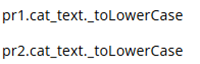
Lowercase versions of an answer can also be added so that the answer can fit more naturally in the text. In addition to the .cat_text option, the dropdown also provides the .cat_text._toLowerCase option.

Insert a translation
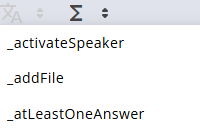
The questionnaire includes system texts (translatable items) that are automatically translated when multiple languages are defined. These texts can also be inserted into the content. When a system text is selected, a placeholder (for example, {{_correct}}) is added. This placeholder is automatically replaced with the appropriate translated text when displayed on screen.

Insert a variable
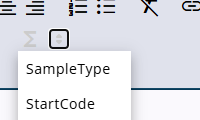
It is also possible to insert a variable into the text. This works in the same way as references to questions and translations: a placeholder, such as {{StartCode}}, is added and automatically replaced with its value when the text is displayed on screen.

Insert a report label
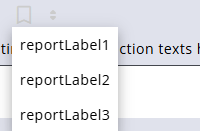
Report labels are similar to translatable items and variables. When selected from the dropdown, they are inserted into the text between curly brackets and are replaced with their values when the text is displayed.
The content of report labels can be defined using the rich text editor, which provides more functionality than translatable items.