


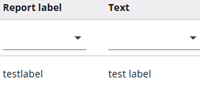
It is possible to use labels in reports. These function differently from variables in the Survey Editor, as they are language-specific and can be used to display text in the report, such as “Excellent” or “Good”.
This article explains how to work with labels in reports.
Create a label

A label can be created by clicking the Add report labels button and entering the name and text in the popup. After saving, the window will close, and the label will appear in the list and be available for use.
Edit a label
After creation the label can be changed by pressing the edit icon in the table. A window opens allowing to change the name and/or the text of the label.
Usage
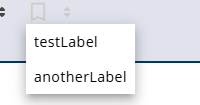
A label can be easily inserted into the text by clicking the label icon in the rich text editor. A list of available labels will appear, and selecting one will insert it into the text between curly brackets, where it will be replaced in the report with the entered text.
Translate
Labels can be translated via the Translations tab. Click Export Translations, update or add translations in the Labels tab of the Excel file, and then upload it. Once uploaded, the translations will be available in the system.