


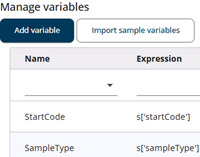
A Variable can be used to create dynamic texts—such as a respondent’s full name—or to calculate results. Their values can be inserted into texts using placeholders, included in other expressions, or used in exports.
The value of a variable can be set by clicking its expression icon and using the Expression window to assign a value or create an expression.
Variables provide powerful functionality within the questionnaire, but they should be used thoughtfully. The sections below highlight key aspects to keep in mind when working with them.
Variable properties
A variables has a few properties, these are described in the table below.
| Property | Description |
| Variable name | The name of the variable |
| Save outcome of the variable whilst the case is being answered, thereby including it in the exports. | When enabled, the variable is included in Excel and SPSS exports. |
| Make variable available for ‘diff’ questions | The variable is made available for “diff” questions, which are used in questionnaires with parent and child components. This is considered advanced functionality and falls outside the scope of this help section. |
Special variables
The table below shows the special variables.
| Variable | Description |
| __AllQuotaGroupsAreFilled | This variable is used by quota groups. More information can be found here. This variable is not visible under the Variables tab, but can be found in the Quota tab. |
| LanguageChosen | This variable can be used in expressions and derives its value from _localeId in the dictionary. It is automatically marked for export, saving the result in response data. This makes it possible to identify which language each respondent used to complete the questionnaire. |
| StartCode | Contains the start code, read from sample values. |
| SampleType | Contains the sample type (draft, test, or production), read from sample values. More information about sample types can be found here. |
| RewardPool | Used in expressions to determine which respondents are eligible for incentives and from which reward pool. If the variable is null, the respondent will not participate in rewards. |
| RewardPoolSender | If an email is sent when a respondent wins a reward, this is the sender email address. |
| RewardPoolSubject | If an email is sent when a respondent wins a reward, this is the subject line of the email. |
Rename/delete variables
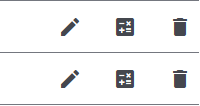
Each row in the table includes Edit, Calculator, and Delete icons.
The Edit icon opens a dialog where the variable name and other properties can be modified.
The Query Builder is opened by the Calculator icon, where an expression can be created or a sample field can be assigned to the variable. More information about the Query Builder can be found here.
The Delete icon removes the variable. An error may occur if a variable is deleted while it is still referenced as a placeholder or used within another expression.
Using sample values
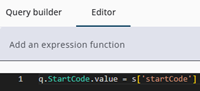
Sample values can be used in expressions and in texts, but it is recommended to assign these to variables and use the variables in expressions and place holders. Typo’s or new names can be easily fixed when using a variable to store the sample value.
A sample value can be assigned to a variable by clicking the calculator icon and entering a sample field in the Sample field text, or by using the Editor-tab where the code can be entered (see also the image to the left).
Import sample variables
Variables can be created for all questionnaire variables at once by pressing the Import sample variables button. The variables will then be created automatically. If duplicates are detected, a popup will be shown asking whether the duplicates should be skipped or the existing variables overwritten.
Placeholders
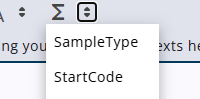
Variables can be inserted into question text, where they will display the current value of the variable. Click the Σ icon in the rich text editor, then select the required variable. It will be inserted into the text and wrapped in double curly brackets.
Variable types
There are three types of variables: standard variables, Reward variables, which are available under the Variables tab, and Quota variables, which can be found under the Quota tab.