


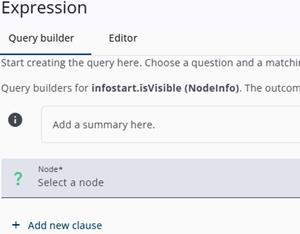
The Query Builder is designed to enable expressions to be created in an intuitive and user-friendly manner. Instead of manually entering expressions in the editor, they can be constructed by selecting nodes and functions.
The Query Builder can be opened by clicking the calculator icon in the Survey Editor (for example, under Show conditionally). A window will then appear with two tabs: Query Builder and Editor.
Editor tab
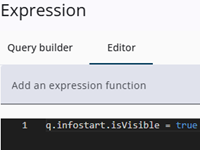
By default, the Query Builder tab is displayed as the active tab. However, by holding the Ctrl-key while clicking the calculator icon, the Editor tab is opened directly.
Not all properties are currently supported in the Query Builder. In addition, it has not yet been implemented in Single Reports; in both cases, only the Editor tab is available.
Property, condition and outcome
If no expression has been defined, the Query Builder is opened as shown in the image below. In this example, the property isVisible and the node infostart are selected, these are highlighted in bold in the image.
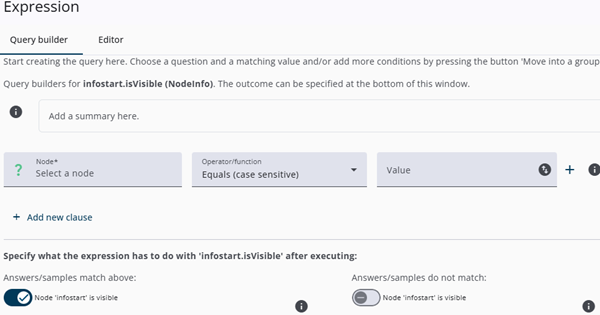
The middle section of the image shows where the condition is defined (also called query, in the image above it is empty). Here, logical rules can be built using clauses that contain simple expressions, such as q.question.value === ‘yes’. These clauses can be combined using logical operators like AND and OR; for example, the expression (expressionA AND expressionB) OR expressionC evaluates to true if both expressionA and expressionB are true, or if expressionC is true.
The bottom section shows the two possible outcomes of the expression: one for a positive result and one for a negative result. In this case, a positive result makes the node visible, while a negative result keeps it hidden.
Building a single clause
A single clause consists of three parts: a node, an operator/function and a value.
Node
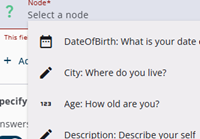
The dropdown labelled Select a node contains all questions in the questionnaire as well as the variables.
The list can be filtered by typing the name of the desired node. The required node can then be selected, after which an operator or function is chosen.
Operator/function
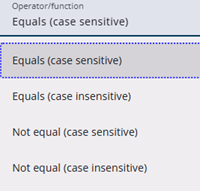
Operators (e.g., Equals, GreaterThan, Contains) define the comparison or action to be performed on the selected node. For example, an operator may be used to check whether the node’s value equals, exceeds, or contains a specified value.
The available operators or functions depend on the type of node selected. For instance, a checkbox list provides different options than a date question.
Value
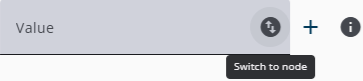
The value may consist of a single entry, such as “yes”, or a set of multiple values.
The required input format depends on the selected node type and operator. For example, when a date question is selected with the GreaterThan operator, a date picker is displayed along with the option to define a dynamic date. When a checkbox list is selected with the Contains function, a dropdown is shown with the available checkbox categories.
In most cases, a node can also be selected instead of a static value. This is done by clicking the switch icon at the end of the row, which opens a dropdown containing the available nodes.
Combining clauses
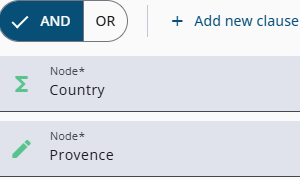
Clauses can be joined using operators such as AND and OR.
For instance, the query expressionA AND expressionB contains two clauses—expressionA and expressionB—connected by the AND operator. The query is then only true if both the clauses are true.
The AND/OR toggles apply to all rows within the corresponding bracket on the left-hand side. This may include multiple rows, and within these, additional toggles can be present to combine nested clauses.
Adding a clause
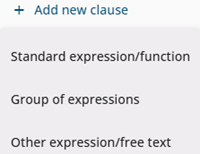
A new clause can be added by selecting the Add new clause button or by using the + icon at the end of an existing clause.
Both options perform the same function; the only difference lies in where the new clause is placed. The + icon inserts a clause directly after the selected row, while the Add new clause button adds a clause at either the beginning or the end.
Three options appear when adding a new clause.
| Option | Description |
| Standard expression | A standard expression consists of an input node, an operator, and a value. |
| Group of expressions | This option adds two standard expressions connected by an operator (AND/OR). |
| Other expression/free text | This option allows custom expressions to be added when standard expressions do not meet specific requirements. |
Deleting a clause
A delete icon is displayed at the end of a clause row when more than one clause is present. When selected, the corresponding clause is removed.
If nested clauses are involved, deleting one clause results in the remaining clause being automatically merged with its parent clauses. For example, if expressionC is removed from the query expressionA AND (expressionB OR expressionC), the query is updated to (expressionA AND expressionB). See also the two images below.
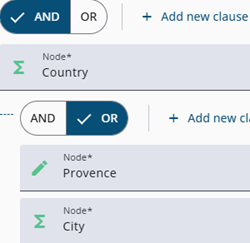
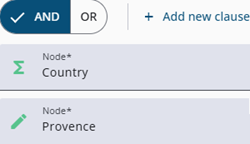
remain:
exprA and exprB
Variables and sample fields
It is recommended to store the value of a sample field in a variable using an expression. For more information, see the articles Variables and Expressions. Most of these expressions follow the format q.variable = s[‘samplefield’].
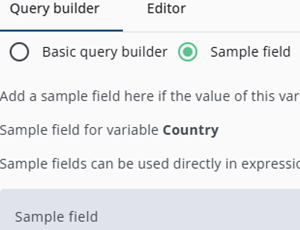
Therefore, when opening the Query Builder to define a variable expression, an additional option is available. The user may either enter the name of the sample field directly or construct the query using clauses.
A warning is displayed if a condition is entered in the query builder and the user then switches to the Sample Field option. This is to prevent accidentally losing the defined expressions.
Categories
Closed questions contain categories, and these can be hidden or disabled based on sample values and/or questions.
The query builder supports this by allowing multiple expressions with different outcomes. For example, one expression may hide category 1, while another hides category 2.
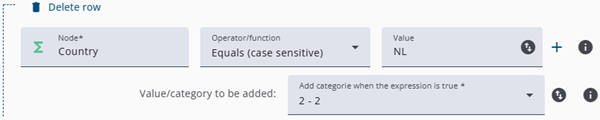
The image above shows the Hide answer categories option for closed questions, including the Add new row and Delete row functions. Each row contains a single expression that produces one specific outcome.
It is important to note that although multiple expressions can be added within this Categories option, nesting several queries – unlike in standard clauses – is not supported.
Import/export
It is possible to export a query and import it into another questionnaire or node. This functionality is available via the two buttons at the bottom of the window.
Please note that a query created for a Goto statement will generate errors if it is imported into an isVisible property.
Restrictions
A wide range of expressions can be parsed into the query builder; however, expressions that return three possible outcomes or perform multiple calculations cannot be parsed.
A warning is displayed in the query builder indicating that the expression cannot be parsed. Nevertheless, the editor can still be used by selecting the editor tab. The query builder may also be used, but the existing expression will be overwritten.
Error handling
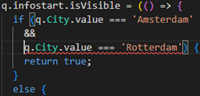
The query is checked by the query builder when Confirm is selected and when tabs are switched. An error may occur, for example, when the query contains an expression such as q.variable.value == ‘1’ AND q.variable.value == ‘2’.
A dialog is displayed showing the errors. These messages may appear complex; in such cases, switching to the editor tab may be helpful. Errors are underlined in the editor, which may assist in resolving them. The expression cannot be stored while errors are present.

Comments
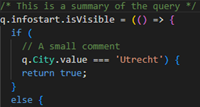
The query builder allows users to add comments. A dedicated field is available for providing a summary of the query, and comments can also be added to individual clauses. These comments help others understand the logic and purpose of the query.
The i icon opens the comment field for a specific clause, while the overall query summary is displayed above the list of clauses.
