


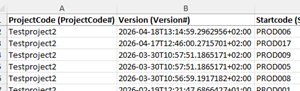
The Excel and SPSS export options can be used to export responses for further analysis. This document provides an overview of the exported data and its fields.
Columns
The exported Excel and SPSS files contain multiple columns of information and are structured into several blocks. First, metadata is included (e.g. device, operating system, start code), with values suffixed by “#”. This is followed by sample values (suffixed by “@”) and variables (suffixed by “$”), and finally the questions.
In Excel, question column names begin with the question text, followed by the variable name in parentheses.

Columns to hide

It is possible to hide certain columns from the export, this can easily be achieved by editing the project.
User missing / system missing
When a question has no recorded answer in the SPSS export, this can have two different causes: the respondent either skipped the question or was never shown it.
A skipped question—where the respondent saw the question but did not provide an answer—is treated as user missing. In this case, a predefined value (currently -99) is assigned in the SPSS export. This approach is useful for analysis, and specific answer options (e.g. “Prefer not to say”) of closed questions can also be defined as user missing. SPSS is able to handle these values accordingly.
In contrast, when a question was not shown to the respondent (for example due to routing), no value is recorded and the field is left empty.
Connected exports
It is possible to link two datasets. In such cases, the export will include additional columns originating from the connected dataset(s). More information is available here.
Multi response questions
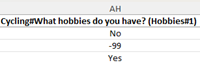
For multiple-response questions (e.g. checkbox lists), each answer option is exported as a separate column and its header combines the question and answer option, separated by “#”.
Selected options are coded as 1 (SPSS) or Yes (Excel), while non-selected options are coded as 0/No when the question has been answered. If none of the options is selected, the question is treated as not answered and all options receive a user-missing value (-99).
If the question was not shown to the respondent (e.g. due to routing), all values are left empty.
Questions with private answers
The answers to these types of questions are anonymised in the Excel and SPSS exports. However, it remains visible whether a respondent has answered the question. User-missing values are still applied to these questions. The actual answers can only be accessed by users with the appropriate permissions.
Different versions
All questionnaire versions are included in the export, provided they contain responses, starting with the most recent version. If a version contains additional questions not present in others, these are also included in the export. For versions where these questions do not exist, the corresponding fields are filled with system-missing values.
If a question has been changed, an additional column is added for the updated question and placed at the end of the export. The same applies when categories are changed: any modified or new category may appear at the end of the exported file.
Stacking projects
It is possible to export multiple projects simultaneously, and the system will merge them as far as possible. When projects contain identical questions, no additional columns are created. However, if a question differs between projects—for example, due to an added response option or changed wording—this will result in an additional column in the Excel export. These extra columns are placed at the end of the dataset. The project code column can be used to distinguish between the different projects.
Variables
Variables can be included in the exports, but they must first be made available; otherwise, they will not appear. If quota groups are defined in the questionnaire, the corresponding quota variables are automatically included in the export.
URL parameters
For more information, refer to the article on URL parameters. URL parameters are automatically included in the export when they are defined in the Survey Editor and at least one sample contains a value.
Excluded startcodes
Some respondents may choose not to complete the questionnaire (opt-outs). These cases can be excluded by using the “Write off samples” button in Survey Admin. The corresponding start codes are then omitted from the export.
Options when exporting
The export can be initiated from multiple locations: the Projects portal, where multiple projects can be exported simultaneously, or the Dashboard section within Survey Admin. The latter option supports exporting one project at a time, but allows selection of both production and test samples.
In both cases, a window is displayed in which multiple options can be selected; these are described below.
| Export option | Description |
| Output in a single worksheet (Excel only) | Combines all visible data into one worksheet, stacking similar questions where possible. By default, this option is enabled. The first project in view is used as the base, and any non-matching variables from other projects are appended vertically. Data can also be exported to separate worksheets (one per project) if preferred. |
| Show the categories as values, and not as text (Excel only) | Displays category values (e.g., 1, 2) instead of labels (e.g., man, woman) in the exported file. |
| Include the project specific status | Includes sample statuses (e.g., delivered wrongly, incorrect sample, too late) in the export. |
| Include time spent per question | Includes the time spent per question as an additional column in the export for each question (in ms). |
| Include connected results (if any) in this export | Includes data from connected projects in the export when enabled. This option allows exporting with or without linked datasets. Read more about connected projects here. |
| Show private data | Allows private responses to be included in the export when enabled. If disabled, private data remains hidden. This option may be unavailable for users without the required permissions. |
| Select custom variables | Opens a panel to select variables for export. All variables are selected by default. The table below provides an overview of system variables. |
Description of special columns
The platform records several variables for each respondent. Below is a brief overview of these variables and their purpose.
| Variable | Description |
| ProjectCode | Identifies the project when multiple projects are included in the export, allowing them to be distinguished. |
| Version | The version of the questionnaire completed by the respondent. |
| StartCode | Login code of the respondent used to access the questionnaire. |
| TemplateCode | For template or open-link starts, this field contains the template code, used for getting access to the questionnaire |
| ResponseMethod | The channel or medium through which the respondent completed the questionnaire. |
| DateStarted | The time and date when the respondent started the questionnaire. |
| DateModified | The time and date when the respondent modified the questionnaire last. |
| DateFinished | The time and date when the respondent completed the questionnaire. |
| HasGivenAnswers | Indicates whether any answers were provided, useful for filtering out empty cases. |
| NumberOfQuestionsAnswered | Total number of questions (including sub-questions and other types) answered by the respondent. |
| AverageTimeSpentPerQuestion | Total time divided by the number of questions answered; can help identify fast (speeding) responses. Interpretation is left to the researcher. |
| TotalTimeSpent | Total time spent on the questionnaire, including multiple sessions if applicable. Respondents with no answers have a time of zero. |
| HasCorrectedResponse | Indicates whether responses were corrected via the system or remain in their original form. |
| PercentageCompleted | Current navigation progress percentage of the respondent, based on the progress bar. |
| LastSeenQuestion | The last question the respondent has seen, but not necessarily modified. |
| NameLastModifiedQuestion | The question last answered or modified by the respondent. |
| DateLastModifiedQuestion | The date of the last modified question. |
| HasBeenAtFinishPage | Indicates whether the respondent has reached the finish page; relevant for automatic completion of responses overnight. |
| OS | The operating system used by the respondent. |
| Device | The device used by the respondent. |
| DeviceType | The device type used by the respondent. |
| UserAgent | The browser user agent used by the respondent. |
| LanguageChosen | When more than 1 language is available for the respondent to choose from, this variable is automatically added and used to store the last chosen language in it. |
| UTM parameters | What parameters were added to the approach method, for example utm_source=sms to identify respondents that clicked on the SMS link. under construction |