


The Advanced tab consists of two parts: Some general advanced settings and the export settings. The table below explainse the general advance settings and the following section explains the export settings.
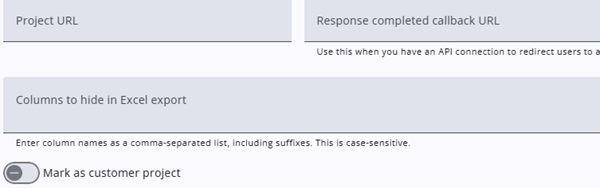
| Setting | Description |
| Project URL | If applicable, an alternative project URL can be specified. This URL may be used when sending emails to respondents. |
| Response completed callback URL | This can be used when an API connection is in place to redirect users to a listening API connection. |
| Columns to hide in the Excel export | Specific columns can be excluded from the Excel export. Column identifiers (including suffixes) should be specified as shown in the exported file headers. |
| Mark as customer project | This is an internal (Desan) setting, and will be removed for external customers in the future. |
Export settings
Multiple projects with shared questions can be exported simultaneously, with common questions consolidated where applicable. By default, results are combined “vertically” (stacked underneath each other, with one row per sample), but it is also possible to connect results “horizontally” (adding additional columns with results from another questionnaire).
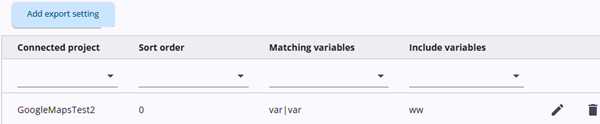
If one project contains metadata for another, this metadata can be included as additional columns in the export. For example, if one questionnaire contains course data (e.g., number of participants) and another is sent to course participants, the results of the first can be appended to the second.
Add/Edit connected results
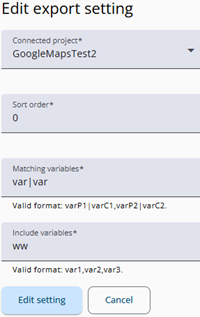
To configure this, start by entering the Connected project. The results of this project are added to the end of the export.
To determine how rows are linked, matching variables must be defined and this can be done by sample variables, for example a course ID. In the Matching variables field, enter the variable from the main questionnaire, followed by the corresponding variable from the connected project, separated by a pipe (|).
In the final field Include variables, specify the names of the questions, sample variables, or metadata to be included in the export.
During export, the system validates the entered fields and returns an error if any values are invalid.
If the main project does not yet contain responses, the system attempts to return the connected results instead.