


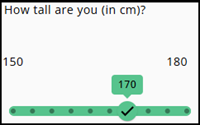
A Min/Max node type should be selected when the answers are best represented as a range on a continuous scale.
If the range is not continuous, it is better to use a RadioButtonList for a short list or a DropDownList for a longer list.
Settings
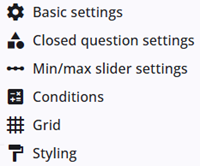
A Min/Max node includes several common settings that are shared across most other node types, providing consistent functionality and configuration options.
The specific min/max slider settings and closed question settings are described in the following sections, and detailed information about the common settings can be found below.
Min/max slider settings
| Property | Description |
| Show as slider | Displays minimum and maximum values with a slider. Categories are shown as radio buttons if not using a slider. |
| Slider thumb start position | Sets the slider’s initial thumb position. Users must still move the slider to select a value. |
| Show slider label | Enable this option to display the text exclusively within the chosen value. |
| Show ticks | Adds tick marks along the slider track. |
| Consistent track colour | Makes the inactive track the same colour as the active track. |
| Prefix | Text shown before the slider value. |
| Prefix vertical position on mobile devices | Place the prefix above or below the slider if it doesn’t fit beside the suffix on mobile. |
| Suffix | Text shown after the slider value. |
| Suffix vertical position on mobile devices | Place the suffix above or below the slider if it doesn’t fit beside the prefix on mobile. |
| Prefix fixed width/Suffix fixed width | Specify a width for the prefix and/or suffix, or leave blank for automatic sizing. |
| Show mobile markers | Adds start and end markers on mobile to guide users. |
| Start marker/End marker | Define start and end points for clearer guidance on mobile. |
| Center text | Text displayed centered above the slider. |
Closed question settings
Information about closed question settings is provided in the article listed below. Details on categories, including how to add them manually in the Closed Question settings panel or via the Category Builder (a tool for managing categories), are also included.
 | Closed question settings Read more about the closed question settings. |
 | Category details Read more about categories and how to add these. |
 | Adding categories Adding categories, e.g., with the Category builder. |
Other settings
Click the links below to explore these settings. The Tags and Trigger tabs are not included here, as they provide advanced functionality and are outside the scope of this guide.
 | Basic settings Learn more about the basic settings of a node. |
 | Conditions Learn how to add conditions to nodes. |
 | Grid Read more about the column layout, breakppoints, and more. |
 | Styling Discover how to style the node. |
 | Validations Read more about how to add validations. |
 | Translations Read more about adding translations. |