


This article describes how reward pools are used to determine respondent eligibility for incentives. Rewards are assigned after the questionnaire is completed, and winners can view their codes in the survey or receive them by e-mail.
Step 1: Create a reward pool
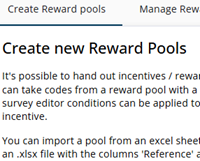
A reward pool is required when respondents can receive prizes. This pool contains reference numbers and PIN codes (for example, for gift cards). When a respondent earns a reward, the corresponding reference number and PIN code is either shown on the screen or sent automatically.
Reward pools can be created in the Survey Admin module. More information can be found here.
Step 2: Who wins what
Not all respondents are necessarily eligible to receive a reward, and some may receive different rewards depending on their answers or sample attributes. The variable RewardPool is used to determine which reward pool, if any, applies to a respondent. The assignment of a specific reward pool can be defined through an expression.
For example, a respondent may receive either a hotel voucher or a dinner voucher based on their response to the winnersChoice question. If the respondent did not answer this question (for instance, because they were not part of the target group), the value will be null, and the RewardPool variable will also return null.
Important: Each respondent can only draw from a single reward pool. Reopening a start code will not result in a different outcome. Once a reward pool has been assigned, it remains fixed.
q.RewardPool.value = q.winnersChoice.value === '1'
    ? p.names.hotelvoucher
    : q.winnersChoice.value === '2'
        ? p.names.dinnervoucher
        : null
Step 3: Show or email the prize
At the end of the questionnaire, the prize can be displayed or sent by email so that the respondent receives all the necessary information.
Step 3.1: Show the prize
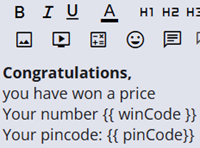
If a respondent has won a prize, it is possible to display the reference number and PIN code on the final node. To do this, create a dedicated node containing the reward information, which is only shown when the variable p.hasReward is true.
Use the placeholders {{ winCode }} and {{ pinCode }} to display the relevant information.
Step 3.2: Email the prize
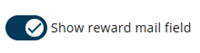
It is also possible to send the information to the respondent by email. To enable this, activate the Show reward mail field toggle.
This allows the respondent to enter an email address, after which all relevant information will be sent automatically.
Please note that the email is sent directly to the respondent and the email address is not stored. However, it is possible to use the Helpdesk to retrieve the reference numbers associated with a given start code.
Helpdesk
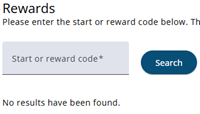
It is possible to retrieve the reference number and PIN code via the Helpdesk. This can be useful if the respondent has not received the email or has not saved the codes. More information about this Helpdesk functionality can be found here.
Response overview
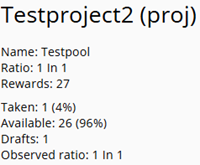
In the Response Overview module, the number of rewards that have been claimed can be tracked, and insight can be gained into how the process is progressing. Based on this overview, the reward pool settings may need to be adjusted so that more or fewer rewards are distributed.
More information on how a reward pool can be configured can be found here.