


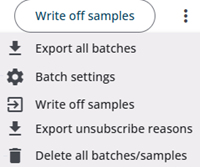
The Sample Batch section of the Survey Admin module provides several batch-related options. Options not specific to a single batch are not covered here; they are described in the Table with batches document.
This article covers general options such as writing off samples, deleting all batches, and more.
Add new batch
A new batch with samples can be created using the Add New Batch button; this process is described in detail here.
Menu options
The table below describes the menu options.
| Option | Description |
| Export all batches | Downloads a file containing all batches. |
| Batch settings | Specify the excluded characters and the length of start codes here. These values are also shown at the end of the batch upload process. Changes made here do not affect existing samples. They apply only to start codes generated by the system, not to those uploaded by the user. |
| Write off samples | Use this option or the Write Off Samples button to mark respondents who opt out. Upload an Excel file with the start codes to be written off. These respondents will no longer receive reminders and can be excluded from SPSS exports and response overviews. Written-off samples can be found in the Export Samples tab; filtering by the Status column makes them easy to locate. See also Sample statuses for more information. |
| Export unsubscribe reasons | Unsubscribe reasons can be exported to an Excel file, which includes the start code, the unsubscribe method (mail, website, or helpdesk), and any reasons provided by the respondent. |
| Delete all batches/samples | Deletes all batches and samples, including the sample definition (the set of defined columns). |