


The table of batches includes several columns, such as file name, and each row provides options for archiving and other actions.
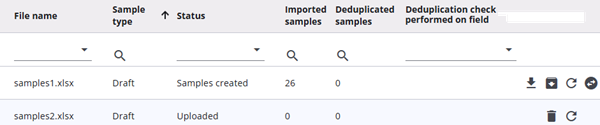
Table columns
The table below explains the different columns in the batches table.
| Column | Description |
| File name | The name of the file containing the samples used when uploading the batch. |
| Sample type | Type of samples: Production, Test, or Draft. |
| Status | Indicates the batch state: Samples created (all samples created after upload), Uploaded (process not completed), or Removed (batch archived). |
| Imported samples | Number of samples successfully imported for that batch. |
| Deduplicated samples | Number of unique samples based on the deduplication field. Samples with duplicate field values will not be uploaded. |
| Deduplication check performed on field | Field used to perform the deduplication check. |
Row options
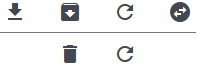
The table of batches provides several actions for each entry, such as archiving. The section below describes these options in detail.
| Action | Description |
| Export and download | Click the export icon to download all data in the batch. This file can later be used to update sample values. |
| Archive | Once start codes are uploaded and created in the system (and thus available for respondents) they can be archived. Archived start codes cannot be used, but this action can be undone if needed. |
| Reload | The edit icon allows updating samples. The file must have the same name and start codes as the original upload. Other columns can be modified, deleted, or added. Changes will be applied to the start codes in the batch. |
| Change type | Samples in a batch can be categorized as Draft, Test, or Production. The type can be changed using this icon, without affecting any sample values. |
| Delete | Batches with status Uploaded can be deleted. Start codes in the batch will no longer be available, and this action cannot be undone. |