


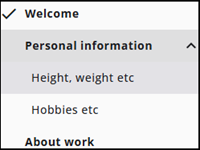
A Menu node is used to facilitate navigation through the questionnaire. Movement from one section to another is made simple, and the respondent’s progress is clearly displayed.
A menu can include submenus as well as other types of nodes. Menu items typically contain questions of the same type; for example, “Personal Information” or “About Work.”
Settings
A Menu node has a limited number of settings, including the Basic Settings and Conditions panels. If multiple languages are defined, a Translations tab is also available. Detailed information about each of these settings is provided below.
Validation of questionnaires containing menus may function slightly differently; this is described in the following section.
Validations
Normally, the respondent is prevented from continuing when validation errors are present on the screen. For example, this occurs if a required question has not been answered. An error message is displayed, and the respondent must correct the issue before proceeding.
It is possible to bypass this validation until the end of the questionnaire or until the Validate button is pressed. This allows questions to be answered more quickly and enables validation to be performed per menu item if desired.
The Validate button can be added to the page by selecting the Questionnaire node in the node tree, opening the Navigation panel, and enabling the Allow Navigation Validation Errors toggle.
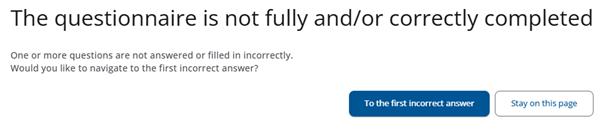
When enabled the respondent will see a Validate button as well. Clicking this validates the questionnaire and allows the user to go to the first validation error in the questionnaire.
Other settings
Click on the links below to learn more about these settings.
 | Basic settings Learn more about the basic settings of a Node. |
 | Conditions Learn how to add conditions to nodes. |
 | Translations Read more about adding translations. |