


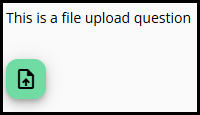
Select FileUpload when creating a new node to allow respondents to submit files. This node type enables users to upload one or more files, including audio, images, videos, and documents such as Excel, PowerPoint, and Word (.docx) files.
The image below shows how this option appears to respondents. When the respondent clicks the icon, a file explorer opens.
Settings
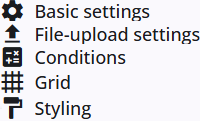
A FileUpload node includes several common settings that are shared across most other node types, providing consistent functionality and configuration options.
The specific FileUpload settings are described in the following section, and detailed information about the common settings can be found below.
FileUpload settings
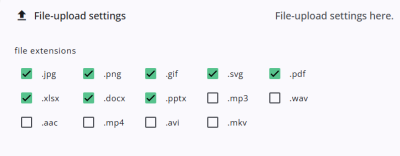
In addition to the common settings, the FileUpload node also has specific file-upload settings that are unique to its functionality. In the File-upload settings, it can be specified which file types are permitted (see image below).
Other settings
Click the links below to explore these settings. The Tags and Trigger tabs are not included here, as they provide advanced functionality and are outside the scope of this guide.
 | Basic settings Learn more about the basic settings of a node. |
 | Conditions Learn how to add conditions to nodes. |
 | Grid Read more about the column layout, breakppoints, and more. |
 | Styling Discover how to style the node. |
 | Validations Read more about how to add validations. |
 | Translations Read more about adding translations. |