


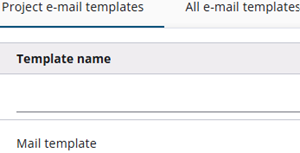
The Approach templates section is divided into four tabs: Project e-mail templates, All e-mail templates, Project SMS templates, and All SMS templates.
Project e-mail templates are used to send e-mails to respondents, such as invitations or reminders. This document explains how to create and edit these templates.
All e-mail templates
The All e-mail templates tab contains all available email templates. However, only templates that match the selected project can be used directly when contacting respondents.
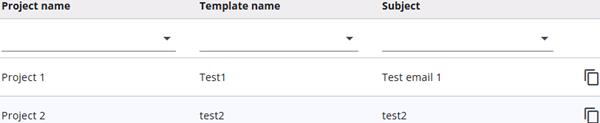
Each template includes a copy icon, which allows a template to be duplicated. When a template is copied, it becomes available within the project and appears under Project e-mail templates.
By default, the copied template keeps its original name with a unique identifier (GUID) appended to ensure uniqueness. This name can be modified later.
Project e-mail templates
The Project e-mail templates tab displays the templates that can be used to contact respondents. However, they must be approved before they can be used.

Each template in the list can be edited, approved, deleted, and copied.
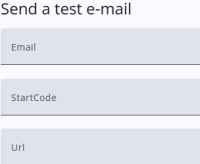
The edit screen is opened using the edit icon, where a test e-mail can be sent via the Test e-mail button and the template can be modified using the MJML editor for e-mail formatting.
A small pop-up window appears after pressing the Test e-mail button. Values can be entered, and after clicking Send, the e-mail is sent to the specified address.
After reviewing the template and confirming it works as expected (including the test e-mail), it can be approved. Once the approval checkbox is selected in the list, the template becomes available for use when contacting respondents.
Templates can also be added here directly using the Add e-mail template button. These templates must also be approved before they can be used to contact respondents.