


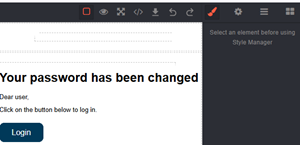
MJML is a markup language, like HTML. HTML is used for web pages, and MJML is a similar language but specifically used for email templates. The editor takes care of converting email templates into responsive layouts without having to be able to code for this.
Editor options
The following sections describe the most important editor actions.

View code
The MJML code of the template can be viewed by clicking the icon. This opens a window where the MJML conde can be copied and used in another template.

Import MJML
The arrow-down icon opens a window where content from other templates can be pasted and modified if needed.

Open blocks
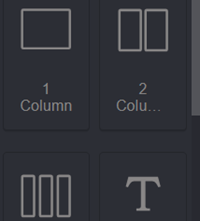
It is also possible to edit content directly in the MJML editor. Existing text can be modified in place, while new text blocks can be added by clicking the icon with four small squares on the right. This opens the block explorer, where blocks can be dragged into the editor.
If the template is empty, start by adding a layout block such as “1 column” (most commonly used), “2 columns”, or “3 columns” to define the structure. Text blocks can then be dragged into the content areas.
Images can also be added to the email by using the Image icon. Dragging images directly into the template from Windows Explorer is disabled, as this may cause issues in Outlook.
Variables
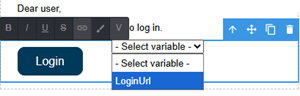
Variables that are replaced when emails are sent can be inserted by double-clicking on the text and selecting them from the dropdown list. Click the V icon to open the variables menu.
Selecting a variable inserts it into the template, where it is replaced with the correct value when the email is sent. In MJML, variables are written as {{startCode}} using double curly brackets.
The available variables depend on the context in which the MJML editor is used. For example, an invitation email for a user contains different variables than an email sent to a respondent. For respondent invitation email templates, the dropdown contains all sample variables defined for the questionnaire, including private fields such as email, name, start code, and others.
If the template contains variables that are not defined for the template then an error will occur when trying to save the template.
Testing
It is important to test a template before using it. The Test email button opens a window where the recipient name and variables can be entered.