


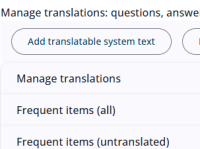
This article describes the how to add translations and languages in the questionnaire.
Additional guidance on managing both types of translations is provided in the linked resources.
Add translatable system text
Clicking this button opens a popup window where a dictionary item can be created.
After creation, translations can be added, and the new dictionary item can be used in question texts and expressions. See also the Dictionary items section below.
Import/export translation
The Import translations and Export translations buttons can be used to quickly translate texts, add languages, and set the default language. Detailed information is available here.
Manage translations
This panel consists of two sections: a table of dictionary items on the left, and language information on the right.
Dictionary items
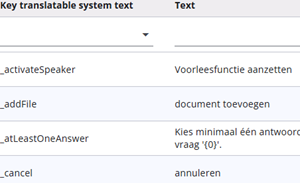
Dictionary items are short texts used for buttons, labels, and other interface elements. They can also be used in question texts (via placeholders) or in expressions (for example, t._cancel). The text shown in the table is the translation corresponding to the selected language.
The content of a dictionary item in the main language can be edited by clicking the edit icon. For other languages, the Import translations and Export translations functions should be used.
Dictionary items used by the system are prefixed with an underscore and cannot be deleted. Custom dictionary items can be added; these can be freely edited and removed.
Languages
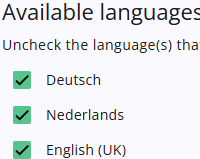
This block consists of two sections: Main language and Available languages.
The main language determines the language of the question texts displayed in the Survey Editor. These texts must be edited directly in the editor. This language also appears as the first column in the Excel file used for translations.
If the questionnaire contains more languages than required, they can be disabled in the Available languages section. This situation may occur when a questionnaire is copied from another project and not all languages are needed.
Frequent items (all/untranslate)
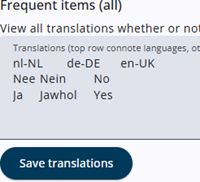
These two panels are used in the same way: in the first panel, all frequently occurring texts (i.e. those appearing two or more times in the questionnaire) are shown, while in the second panel only (partially) untranslated frequent texts are displayed.
Translations can be edited directly in the text area or copied to a text editor such as Notepad, which is recommended for working with tab-separated values.
The first item in each row must not be changed, as it is used as the reference text. Translations are placed after this item, separated by tabs, and the order must match the column structure shown in the header row.
When finished, the content should be copied back into the text area and Save translations should be clicked to process the changes.
Related articles
Click the links below for more details about translations and languages.
 | Respondent’s languages How to define different languages |
 | Languages and translations How to manage languages and translations. |