



Quota groups help ensure that different groups of respondents are represented correctly in a survey. They keep the survey balanced and prevent some groups from being over- or under-represented.
This article describes step by step how to set up quota groups.
How Quota groups Work
For example, a quota group can be set up to collect 100 responses from Amsterdam and 100 responses from Rotterdam. Quota groups can also be more specific, such as male respondents from Amsterdam.
It is also possible to define multiple quota groups within a survey, and a respondent can belong to several quota groups at the same time. As long as a respondent belongs to at least one quota group that has not yet been filled, they can continue to complete the questionnaire. Otherwise, the respondent will usually be redirected to the end of the questionnaire.
Step 1: Create a quota group variable
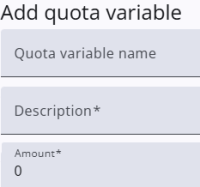
A Quota variable is used to represent a quota group. A new variable can be created by clicking the Add quota variable button, which opens a window where the Name, Description, and Amount can be entered. The variable is then created when Confirm is pressed.
Once created, the new variable appears in the list.
If it is the first quota variable added, an additional variable named __AllQuotaGroupsAreFilled will also appear in the list. This variable is explained in the Redirect section below.
Step 2: Define the expression
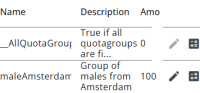
An expression is required for a quota variable, which must return true or false, with true indicating that the respondent belongs to the Quota group. The expression window can be opened by pressing the calculator icon in the list of variables.
In this example, the variable is called maleAmsterdam, and its value depends on the answers given to the city and gender questions (or the corresponding values in the sample). The variable’s value is accessed via q.maleAmsterdam.value, which is the first part of the expression.
Both city and gender are closed questions, with Male and Amsterdam assigned a value of 1.
The function isInQuotaGroup checks the values of q.city and q.gender. If both conditions are satisfied, true is returned, indicating that the respondent belongs to this quota group.
q.maleAmsterdam.value = (() => {
  /* City: 1 = Amsterdam, Gender: 1 = Mail */
  if (isInQuotaGroup(q.city, '1') && isInQuotaGroup(q.gender, '1')) {
    return true;
  }
  else {
    return false;
  }
})()
In this example, the expression editor is used, although the query builder can also be used as an alternative.
Note: The isInQuotaGroup function is not required, but it ensures that empty values are handled correctly and that either true or false is returned, preventing an empty answer.
Step 3: Set a question as Quota group marker
The system tracks how many respondents belong to each quota group, but this is not done after every answer—only at specific points in the questionnaire. Some questions are relevant to all respondents, while others apply to only a subset. Counting is performed only when it becomes necessary.
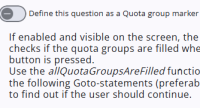
Each question includes a toggle labeled Define this question as a Quota group marker. When enabled, the system counts the number of respondents in each quota group as the question is passed.
Step 4: Redirect (to the end)
The variable __AllQuotaGroupsAreFilled can be used to determine whether all quota groups relevant to a respondent have been filled. The outcome is false if the respondent does not belong to a quota group, or if at least one of its quota groups has not yet been filled.
This variable can be used in the expression of a Goto statement, preferably placed immediately after the question in the previous step. For example, it can be used to redirect the respondent to the end of the questionnaire when all relevant quota groups are filled. See also the example below.
q.GoToEnd.goto = (() => {
  if (q.__AllQuotaGroupsAreFilled) {
    return q.gotofinalcomments;
  }
  else {
    return null;
  }
})()
Status of a quota group
A Quota group overview can be created in the Response overview module, allowing the live status of quota groups to be monitored. This overview makes it possible to track how many respondents have been assigned to each quota group. More information can be found here.