


This article outlines the steps for inviting respondents to participate in a questionnaire via SMS.
It provides an overview of sending invitations and reminders via SMS, selecting and filtering samples, and configuring SMS templates and links, with detailed instructions on some of these topics provided in this article and others explained in separate articles.
All the necessary steps are described below, beginning with the SMS template.
Step 1: The invitation template
An approved template is required to send SMSes. Detailed instructions on creating and filling SMS templates are provided here. For the initial SMSes, an invitation template is required, while other templates are needed for different purposes.
Step 2: Send a test SMS
A test SMS can be sent via the Approach templates section, as well as via the Approach respondents tab in the Sample management section of Survey Admin. The first option is mainly used to review and approve the template itself.
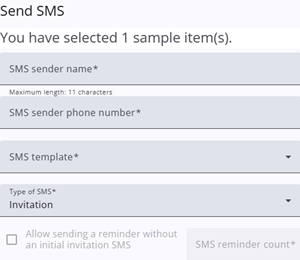
The second option uses real samples. Select one or more samples (or all samples) and click the Send test SMS icon or button. A pop-up window (see the image in the first paragraph) will appear, where additional information can be entered. The fields in this pop-up window are described in the table below. The table contains also some fields that appear when normal SMS-es are send to respondents.
Note: It is possible to filter specific samples in the table when a particular group of samples is needed for the test SMSes. For test SMSes, it is not necessary to select samples; if none are selected, the system will treat this as if all samples have been selected.
| Field | Description |
| SMS sender name | Specifies the sender name. |
| SMS sender phone number | Specifies the phone number of the sender. |
| SMS template | Selects the SMS template. For test SMSes, all project templates are available; for actual mailings, only approved templates can be used. |
| Type of SMS | Specifies whether the SMS is an invitation or a reminder. |
| Allow sending a reminder without an initial invitation e-mail | When enabled, reminders can be sent without a prior invitation. |
| SMS reminder count | Specifies which reminder is being sent (e.g., first, second). |
| Amount of random samples Percentage Send to every x-th person | These three options allow sending e-mails to a subset of the sample. |
Step 3: Send SMSes
It is not required to send test SMSes first; it is also possible to send SMSes to respondents without this step. This can be done by selecting all samples, or by selecting a subset (with or without filtering), and clicking either the Send SMS button or icon.
In both cases, a pop-up window appears where additional information can be entered. This is the same window as described in the previous step; however, only approved templates are available in the template list.
Step 4: Check approach logs
After the SMSes have been sent to respondents, the results can be reviewed in the Approach logs. This table provides an overview of key metrics, such as the number of samples and number of errors, along with other relevant information.
It is recommended to review these logs after sending each batch. For more information, refer to the section on Approach logs.