


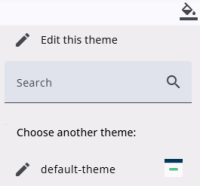
The theme picker icon opens a small window where a theme can be chosen and the current theme can be edited.
A theme defines the layout and appearance of both the questionnaire and the editor. It controls elements such as background colours, fonts, font sizes, and other visual settings. Changing the theme affects not only what users see in the editor, but also how the questionnaire appears to respondents, so changes should be made with care.
This article explains what a theme does (see above) and how to choose a theme, while more information on editing a theme and changing colours can be found here.
Choose a theme
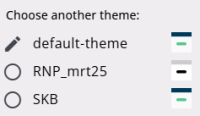
If multiple themes are displayed in the theme dialog, a theme can be chosen from the list to become the current theme. All available themes are shown, with the currently selected one first. After selecting a different theme, a confirmation dialog appears. Confirming the dialog sets the new theme.
Edit a theme
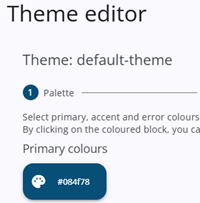
The theme can be edited by clicking the Edit icon at the top, which opens the Theme Editor window. More information about which colours and fonts can be set is available here.
Changing a theme in the Survey Editor will create a copy of the current them, and the changes only apply to the selected project. More information on changing the theme for all projects can be found here.
If the theme has been modified, a tooltip indicates that it has been edited and an edit icon is shown; otherwise, a radio button is displayed. The current theme can be overwritten by clicking on either the changed or unchanged theme, and confirming the change sets the new theme.