


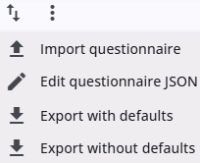
Clicking the arrow-up/arrow-down icon in the toolbar opens a menu with options to import, export, and edit. This allows the user to update the questionnaire’s source code, which is stored as a JSON file.
The options are described below.
Import questionnaire
The Import questionnaire option allows the user to load a JSON file previously exported, with or without default values. This makes it easy to quickly copy or edit a questionnaire without including additional elements such as themes, images, or menu items. It can also be used to overwrite an existing questionnaire
Edit questionnaire JSON
Selecting this option opens a window displaying the questionnaire’s JSON code. Users can make direct edits within this window, for example, to rename nodes or correct typos in translations—without needing to export, modify, and re-import the entire translation file.
Export questionnaire with/without defaults
This option lets users export a JSON file of the questionnaire, which can be opened in a text editor. It can be used to edit question texts or import the questionnaire into another project to create a copy.
Users can export with or without default values. Exporting without defaults is usually sufficient, while exporting with defaults is useful for changing default settings or making multiple similar modifications.