


The columns in the table within the Export Samples tab of the Sample Management section include filtering options, and any applied filter can be saved for future use.
This article explains how to apply filters and save them for later use.
Filtering
Filtering and sorting can be performed using the column headers, and any filters set can be saved for later. For more information, see also the article about Filtering and sorting.
Save a filter
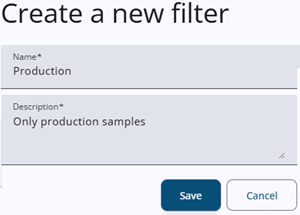
Once a filter has been applied to the sample table, the Create new filter icon becomes active. Clicking it opens a window with Name and Description fields. After pressing Save, the filter is stored and ready to be used again later.
Reuse a filter

A list with saved filter is displayed when click on the filter dropdown, and a filter can be picked from the list.
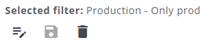
Once a filter is selected, it appears below the dropdown with Edit, Save, and Delete icons, allowing the user to save updates or to rename or remove the filter.