


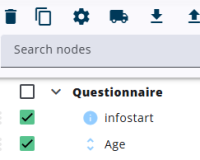
Nodes can be copied by selecting one or more nodes in the node tree and clicking the Copy icon. A window with copy options will appear, allowing changes to the node names, such as adding a prefix or suffix or replacing part of the name.
The preview on the left side of the window shows the final result.
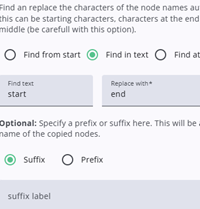
The first section in the right pane provides the option to replace strings in the node name with a new string.
The replacement can be applied at the start, within the text, or at the end of the name. The left pane shows the final result of the replacement.
The second section provides the option to add either a prefix or a suffix to the names of the new nodes. The result is also reflected in the left pane.
The new nodes are added to the node tree after Confirm is pressed and are placed directly after the last selected node. If one of the new names already exists in the node tree, the new node will receive _1 as a suffix (or _2, if needed).
If any node has an external label, it will be removed to prevent duplicate external labels, which can cause issues in SPSS exports.