


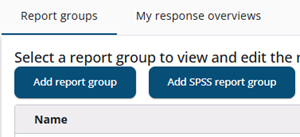
Report groups can be added on two different ways: via the Add report group and via the Add SPSS report group.
Add report group
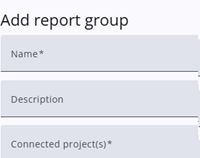
A popup window is opened when Add report group is clicked, where a name, description, projects, and a threshold can be entered. The report group is saved by pressing Add.
After creation, the report group can be modified by pressing the gear icon. Response overviews can be added by clicking on the row.
Add SPSS report group
To use SPSS data as the source for a response overview, a report group is first created by selecting Add SPSS report group. The SPSS projects icon is then used to upload an SPSS file containing the data to be displayed.
A dialog is shown where the variables to be imported can be selected, either individually or all at once. If the data in the response overview needs to be updated, a corrected SPSS file is uploaded and a new version of the report is created by pressing Create report version, which recalculates the data in the response overview.