


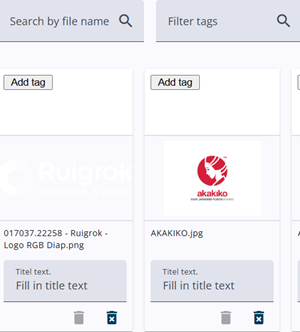
The system allows users to upload documents and images for use within texts and menus.
The document and image banks can be accessed in several ways: through the top-right menu, via the Menu Builder in the Survey Editor, or directly from the rich text editor using either the link tool or the image insertion icon.
Both the document bank and the image bank appear as separate options in the top-right menu, but they function in essentially the same way.
Image and Document Bank Usage
The document and image banks are simple to use: all uploaded items are shown, and new ones can be added via the top-right icon. Items are selected by clicking on them.
When opened from the rich text editor, the image bank includes a Use selected image button. The document bank—accessed via the Survey Editor menu builder or the Link option in the rich text editor—shows a Use selected document button.
Multiple files can be uploaded at once, and selected items are inserted directly into text or menus.
Uploaded images and documents can be used across all projects and are not linked to a single project.
Deleting images and documents
Two bin icons are displayed below the images in the Image Bank. The first icon is used for a soft delete, while the second is used for a hard delete (force delete).
A nightly job checks whether an image is currently being used, for example in a survey, report, or mail template. If the image is not in use, the first bin icon is enabled, allowing the image to be safely deleted.
If the image is still in use, the first bin icon is disabled and the second bin icon is enabled. This icon is intended for a force delete. When selected, a warning is displayed informing the user that the image will no longer be available and that the action cannot be undone.
When performing a force delete, the user is responsible for manually removing any remaining references to the image, for example from reports.
Tags and Accessibility
The bank also supports tags, which can be used to categorize and search items more effectively. For example, tags can group related assets such as smiley variations or customer logos, helping to prevent the creation of multiple nearly identical files.
It is also important to ensure proper use of image descriptions (alt text). In many cases, images are uploaded without a description, which can make them inaccessible to assistive technologies such as screen readers, including those used by visually impaired users in the Survey Response.
When an image conveys meaningful information, it should include a clear description for accessibility purposes, while purely decorative images do not require alt text.