


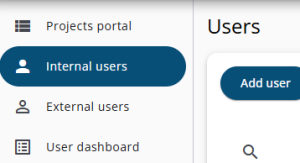
There are two types of users: internal and external.
Internal users have access to various parts of the system, while external users have limited access and can only view the Response Overview section.
The following sections provide an overview of the Users section of the system, including how to add a new user, the different roles, and other key features.
Roles and rights
Users of the software can be assigned different roles depending on their responsibilities. The table below lists all available roles and provides a brief description of each.
Care should be taken when assigning (Survey) Administrator roles to multiple users, as these roles require a thorough understanding of the system.
In general, Administrators and Survey Administrators have near full access to the system, while Managers and Helpdesk users primarily work with samples.
| Role | Description |
| Administrator | Has full access to the system, including archiving projects, changing themes, and editing questionnaires. |
| Survey Administrator | Has nearly full access, but cannot change themes. Additional limitations include not being able to create Administrators, set the default theme, or manage jobs. |
| Manager | Can manage samples, view questionnaires and email templates, and edit settings, but cannot edit questionnaires. |
| Helpdesk | Can only manage samples within the Survey Admin. |
| User | Has no access to the system. This role is used for technical purposes only. |
Users table
The table underneath describes all the columns in the Users table.

| Column | Description |
| Name | The user’s full name. |
| The user’s email address. | |
| Role | The user’s assigned role (see the table above for details). |
| Projects | The projects a user has access to can be managed using the Edit icon. For privacy reasons, it may be useful to restrict access to certain projects for specific users. This restriction does not apply to Administrators. |
| Invitation date | The date the invitation email was sent. |
| Last Login | The most recent time the user logged into the system. |
| Activated | Indicates whether the user account is active. |
| Edit | The Edit User window is opened, where the user’s name and other properties can be updated. |
| Resend registration e-mail | Sends the registration email again. Note: the original invitation link is only valid for a limited time. |
| Impersonate | Allows an administrator to temporarily act as this user to view the system from their perspective. |
| Delete user | Deletes the user account. This option is disabled for the currently logged-in user or users without sufficient permissions. |
Add User
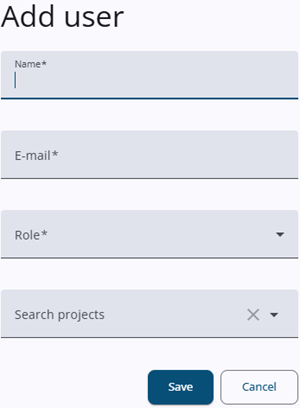
Clicking the Add User(for internal users) button opens a window where the Name, E-mail, Role, and projects can be selected.
Projects can be filtered by typing in the field and selecting from the resulting list. The user will then have access only to the selected projects.
For security reasons, a Survey Administrator cannot create a user with an Administrator role.
The Add external user window works similarly, but the Role field is not included.
Edit user
Users can be edited after creation by clicking the Edit icon in the corresponding row. This opens the Edit User window, where settings such as assigned projects can be updated.
The window also includes three toggles.
| Toggle | Description |
| Activated | When enabled, the user is active. If disabled, the user is inactive and has no access to the system. |
| Enable accissibility | Intended for internal (Desan) use. |
| Is allowed to see private marked answers in the export | When enabled, the user can view answers marked as private in exports. If disabled, these answers are shown in a scrambled format. |
Import/export users
Users can also be added by importing them from a file. Additionally, the Export Users option allows users to be easily copied from for example a test environment to a production environment. This feature is available to administrators only.