


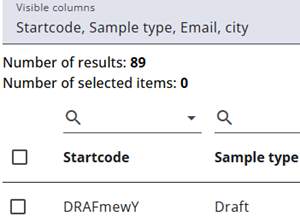
The Export Samples tab lets users export all samples or a selected subset and choose which columns to include.
It also allows updating private variables, such as the email address.
The sections below describe the page’s main features: filtering, columns, and downloading.
Configure view
The Configure view button allows users to choose which columns are displayed in the table and included in exports. By clicking the button and selecting or deselecting column names, columns can be shown or hidden accordingly.
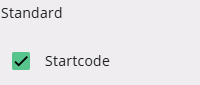
Columns are grouped into standard variables, questionnaire variables, report variables, and private variables. Standard variables refer to system-defined fields such as email status and sample type.
Filtering and sorting
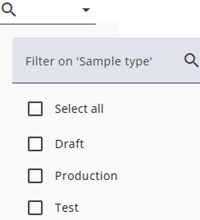
Filtering and sorting options are available for the visible columns to help the data be easily organized and located.
Filtering can be done by typing a value in the field next to the magnifying glass icon or by clicking the small triangle to open the list of available values and selecting from it. Filters can also be saved and reused—see Sample filters for more details.
Sorting can be applied by clicking on a column header, with both ascending and descending orders supported.
Download export file
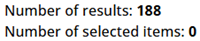
The visible samples can be exported by clicking the Download Export File button. Only the samples that are currently filtered and the columns that are visible will be included in the export.
The number displayed above the table indicates how many samples will be exported.