


Viewing a report is straightforward. Respondents may see a link at the end of the questionnaire, while system users can open it directly from the Single Reports Editor.
This article highlights a few useful tips when viewing a report.
Buttons
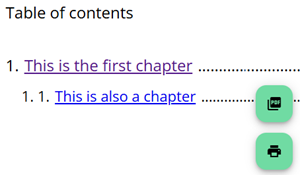
Two buttons are located in the bottom-right corner of the page: one is used to generate a PDF version of the report, and the other is used for printing.
It should be noted that, although the report may contain expandable sections, all sections are automatically expanded in both the printed and PDF versions.
Validationcode
If a validation code is defined for the sample, it must also be entered on the login page. The validation code should be added after the start code in the start code field, separated by an underscore. For more information, refer to the section on validation codes.
Start code
If a start code is entered when the report is opened from the Single Reports Editor, the system will remember this code. The next time the report is opened from the Single Reports Editor, the same start code will automatically be used again.
Language
A language parameter can be added to the single report URL (for example, ?lang=en-GB), but this does not guarantee that the report will be displayed in that language.
The report first checks whether a previously selected language is stored in the browser. If such a value exists, that language is used. Otherwise, the language specified in the URL is applied—provided it is available in the report.
If no language is defined and no start code is provided, a language selection dropdown is displayed on the login screen. If a start code is used, the first language defined in the report is applied.
For example, if a respondent has previously selected de-DE (German) as their preferred language, and the report is opened directly from the end of the questionnaire with ?lang=en-GB in the URL, the report will still be displayed in German.