


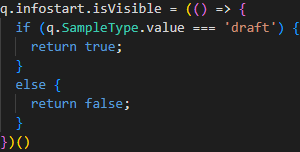
Expressions are powerful and complex components of the software. Different purposes are served by expressions, such as showing or hiding a question or category based on provided answers or sample variables, skipping of one or more questions, and other similar functions.
In this article, a brief explanation is provided of how expressions work and how they are used. Expressions can also be created through the Query builder.
Typescript
Expressions use TypeScript (which is similar to JavaScript), and working with expressions requires basic programming knowledge.
Within the questionnaire, questions are represented as TypeScript objects with properties such as text (the question text shown to the user), enabled (whether the question is active), visible (whether the question is displayed), and value (the given answer). In addition, variables and translatable items are also represented as objects that can be referenced and manipulated.
These properties, including the question text and other attributes, can be accessed, modified, and used through TypeScript code.
Example
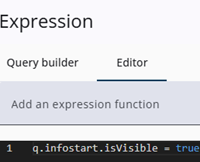
In the Survey Editor, the visibility of a question can be configured. Within the Layout section, a button labeled Show conditionally is available. When this button is selected, the expression editor window is opened, which contains two tabs.
The Editor tab displays an interface similar to the image shown on the left.
How does it work
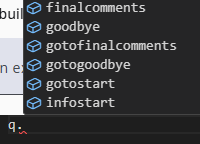
The letter q is used to represent questions. Each question is referenced in the form q.name, where name corresponds to the question name defined in the Survey Editor.
When typing q. (q followed by a dot), a list of all available questions is displayed. This list is known as IntelliSense and provides helpful autocompletion options.
After selecting a question, additional properties such as .text, .isVisible, or .value can be appended as needed, and values can be assigned to them.
For .isVisible, only true or false values can be used. The .text property accepts string values. The .value property depends on the question type; for example, a numeric question requires a number as its value.
The visibility of a question often depends on sample variables or on the answer provided to a previous question. The image below illustrates an example of this configuration: the node infostart is displayed only if the answer to textquestion is equal to ‘my answer’.

Setting properties
The isVisible and isEnabled properties of a node can be configured in the Survey Editor by selecting the calculator icon next to these settings. When the Expression Editor is opened in this way, the name of the corresponding node is automatically inserted, and only that specific question can be modified. This means that other questions cannot be hidden or disabled from within this context.
When the Expression editor is opened from the rich text editor, the text of a question can be modified instead.
The collections
The table below shows that possible “collections”, like q.
| Collection | Description |
| q | Contains all questions, including variables and node information. |
| r | Contains all reports. When typing r. (r followed by a dot), a list of available report names is displayed. |
| t | Contains translatable items as defined in the Translations tab. This is especially useful when displaying text in multiple languages. |
| m | Contains a set of metadata, such as totalTimeSpent. These values can be used to exclude, for example, respondents who complete the questionnaire very quickly, so-called speeders. |
| p | Contains the data of the reward pools, such as the name of a reward pool and other related information. |
Sample fields
Sample fields can also be used in expressions, but they are handled differently from questions. If the name of a sample field is known, its value can be accessed using s[‘samplefield’].
However, it is recommended to assign the sample field to a variable—for example, q.samplefield.value = s[‘samplefield’]—instead of repeatedly using bracket notation within expressions. This approach reduces the risk of typing errors, ensures the sample field name is defined only once, and allows the value to be preprocessed (for example, converting it to lowercase) before it is used.
Goto statements/routing
Routing is one of the most important aspects of a questionnaire. It determines where a respondent is directed next, based on the answers provided. In this case, the result of an expression is not a text value or a true/false outcome, but a reference to another node in the questionnaire.
In the example below, the goto statement directs the respondent to xxx if the sample type equals “draft”. Otherwise, the respondent is directed to a different node.

This notation, which uses a question mark (?) and a colon (:), is known as a conditional statement. The expression before the question mark defines the condition. The part immediately following the question mark is executed if the condition evaluates to true, while the part after the colon is executed if the condition evaluates to false.
Functions
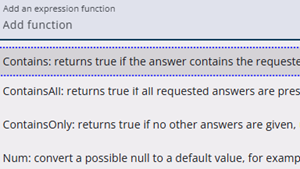
Functions are very useful, as they can significantly reduce the amount of work required when creating expressions. A common example is the contains function: contains(q.car, “bmw”, “volvo”) returns true if the answer to the car question is either “bmw” or “volvo”, and false if it is not (or if no answer has been provided).
A variety of functions are available. These can be accessed through the dropdown menu above the Expression Editor. The provided descriptions, together with IntelliSense, make it easier to understand how each function works and how it should be used.
All typescript
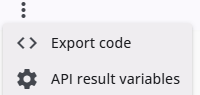
The Export Code button in the Survey Editor can be used to export the TypeScript code for the selected questionnaire. The code is saved as a TypeScript file with the .ts extension. All configured expressions are included at the end of this file.
The exported file can be opened in a code editor such as Visual Studio Code, where the expressions are automatically validated. Any syntax or validation errors are highlighted with a red underline.

The exported TypeScript file can also serve as a useful overview, as it lists all expressions and variables used in the questionnaire in a single location. This makes it possible to review the routing logic and questionnaire flow without opening each individual node in the Survey Editor.