


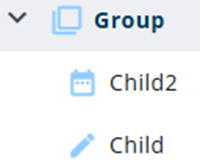
A Group primarily functions as a container. It is used to organize nodes within the node tree, helping to maintain a structured and concise overview.
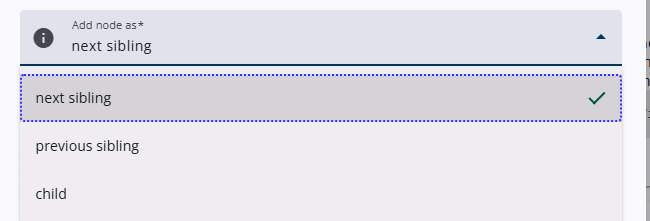
To add a child node to a Group, the child option must be selected from the Add node as dropdown menu in the Add node pop-up window. Alternatively, child nodes can also be dragged into a Group.
Settings
A Group node includes several common settings that are shared across most other node types, providing consistent functionality and configuration options. In addition, a page break is enforced by the Group node, meaning that its nodes are displayed on a new page when the questionnaire is completed.
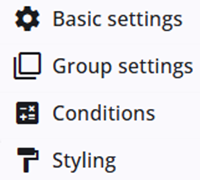
The specific Group settings are described in the following section, and detailed information about the common settings can be found below.
Group settings
In addition to the common settings, a specific group setting is available for the Group node. When this setting is enabled, the text entered in the Basic settings section is displayed to the respondent whenever one of the nodes within the group appears on the screen.

Other settings
Click on the links below to learn more about these settings.
 | Basic settings Learn more about the basic settings of a node. |
 | Conditions Learn how to add conditions to nodes. |
 | Styling Discover how to style the node. |
 | Translations Read more about adding translations. |