


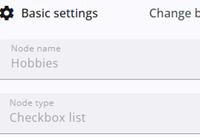
This article provides an overview of the basic settings of a questionnaire node, such as its name, title, and other attributes.
Most of these settings are straightforward, and guidance is provided by the Survey Editor through help texts.
The table below lists all available options, along with brief descriptions.
Settings
The table below lists all basic settings. Many settings are shared across different node types, though small differences may exist between them.
| Setting | Description |
| Node name | The name of the node. It can be changed by pressing the Edit icon. |
| Node type | The type of the node. This cannot be changed once it is set. |
| Text | The text of the question. This can be set using the Rich text editor. |
| Instructions for the call center | Instructions for the call center can be added here. These are visible if desan_telephone=1 (prefixed by ? or &) is added as a parameter to the login page URL. |
| External label | Normally, the node name is displayed in the SPSS export and in reports. The use of an external label allows characters that are not permitted in node names, thereby facilitating data processing. |
| Hide speaker | When enabled, the speaker functionality is hidden for this node. On the questionnaire’s Layout tab, the speaker can be hidden for all nodes. If this is done, it overrides the setting for individual nodes. |
| Mark given answer as private answer | The answer given for this question will not be included in data exports, response overviews, or other reporting tools. It is only available in exports performed by users with special roles. Read more |
| Define this question as a Quota group marker | If enabled and visible on the screen, the system checks whether quota groups are filled when the Next button is pressed. Read more |
| Add additional information | When enabled, extra information can be added and displayed either in a dialog window or as a tooltip. |
| Info text | If info text exists, an info icon is shown in the questionnaire. The icon opens either a dialog window (default) or a tooltip with additional information about the question. |
| Select info position | Determines whether the info is shown before or after the label text. |
| Show node info in a dialog | By default, extra information is shown in a dialog window when the respondent clicks the info icon. If disabled, it is displayed as a tooltip. |
| Use this question as a calculated question | A calculated question can be modified and used by expressions, but it will not appear in the questionnaire. Read more |
| Calculate the values | The expression used to set the value of the node. |