


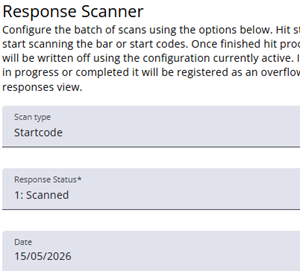
This screen is used to set up a scanning batch for paper responses, making it easy to track returned forms.
The scan type can be defined here, response status after scanning, and scan date.
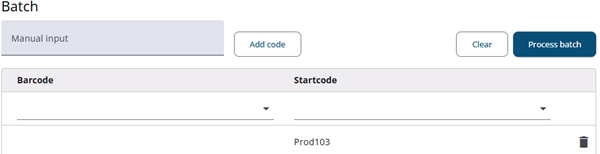
Once everything has been configured, scanning can be started by clicking Start scanning. After all papers have been scanned press Stop scanning and process the batch by clicking Process batch.
A start code or barcode can only be processed once. If a code has already been processed, clicking Process batch will generate an error for that specific entry. The duplicate entry will be skipped, while all other valid entries will continue to be processed normally.
The status of the sample/response can be viewed in the Export samples tab under Sample management. Enable the Paper response status column to display it.
The Response Overview module also provides the option to track counts and results. Select $ResponseStatus as the variable to display the different response statuses.
Codes can also be entered manually if needed. When a valid code is entered, it will automatically be added to the list of processed entries.
Note: The Response status can be managed at the tab Scan statuses.