


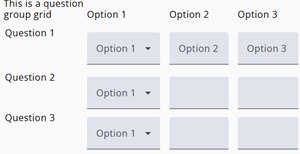
A question group grid allows different types of questions to be organized within a single grid layout.
For example, a survey could ask respondents to evaluate multiple aspects of a service, combining rating scales, single-select questions, and comment fields in a unified table.
In this layout, each row can contain a different question type, while columns provide a consistent structure for answers. This approach helps streamline the questionnaire and presents related questions in a clear, organized format.
The construction of a question group grid involves a few steps, which are described below.
A Range node is automatically created when the type of grid is selected. If the setup is canceled, the node can be removed by pressing Cancel and Remove.
Step 1: The columns

The columns in the grid represent the possible answers to each question, such as a score from 1 to 10. Answers can be entered manually or quickly added using the copy-paste option.
Step 2: The rows
The rows in the grid are the different questions, each row corresponds to a question text. And the different questions can be entered manually or copy pasted.
Step 3: Open questions
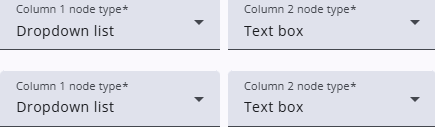
The fields in a question group grid are set up in step 3. A single row can include multiple types of answer fields—for example, a dropdown followed by a text box.
Rows do not need to follow the same layout: the first row could contain only text boxes, while the second could consist entirely of dropdowns.
Step 4: Basename
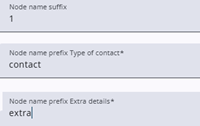
A question group grid automatically creates the child nodes, and their names can be configured here.
The screen is organized so that the suffix for numbering the nodes is set first, followed by the prefixes for each row of nodes.
For example (see image), in this case, the two contact nodes will be named contact1 and contact2.
It is also possible to use letters instead of numbers for sequencing, such as a, b, and c.
Step 5: Example

The final step in the wizard displays the complete setup, with one row for each question and one column for each answer field.
The results
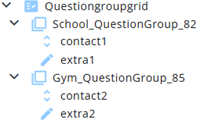
The result is a Range node containing question groups—one for each question.
Each question group, in turn, contains the child nodes representing the different answer fields (in this case a dropdown and a text box).
Note: the numbers shown in the image (82 and 85) come from the node IDs, ensuring that each name remains unique.
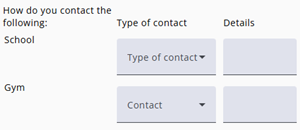
Respondents will see an interface similar to the image on the left. Note that the text “How do you contact the following:” is entered at the Range level itself.