


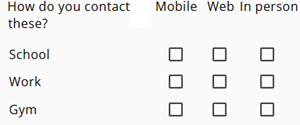
A multi-select grid allows respondents to choose multiple answers for each question in a consistent layout.
For example, a question such as: “How do you contact these:” can be asked for several topics like school, work, gym.
In this format, the questions are listed vertically, while the possible answers are displayed horizontally as checkboxes. Multiple answers can be selected per row, making it suitable for situations where more than one option may apply.
The construction of a multiple choice grid involves a few steps, which are described below.
A Range node is automatically created when the type of grid is selected. If the setup is canceled, the node can be removed by pressing Cancel and Remove.
Step 1: The columns
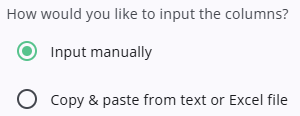
The columns in the grid represent the possible answers to each question, such as Mobile, Web, and In person (see the image above). Answers can be entered manually or added using the copy-paste option.
Step 2: The rows
The rows in the grid are the different questions, each row corresponds to a question text. And the different questions can be entered manually or copy pasted.
Step 3: Basename
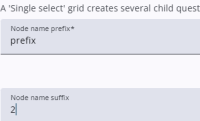
A multiple choice grid automatically creates the child nodes, and their naming can be configured here. The prefix defines the base of each child node, while the suffix determines the final part of the name. In this example, the first child would be named prefix2 and the second prefix3.
It is also possible to use letters instead of numbers for sequencing, such as a, b, and c.
The result
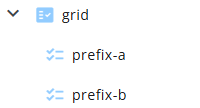
The result is a Range node with CheckboxList nodes as its children. The categories for these lists are managed at the first child level, ensuring that all child nodes share the same set of response options for consistency.