


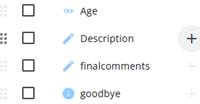
A node can be added by clicking the + icon in the node tree in the Single Reports editor. In the Add Node window, the new node can be positioned before or after the selected node, or added as a child node, depending on the option chosen.
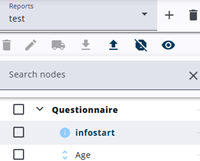
The Add Node window displays the selected node, a field to enter the node name, and a dropdown menu where the node type can be chosen.
“Question” node types (e.g., TextArea) cannot be selected, as they are synchronized from the questionnaire. More information about node types can be found here.
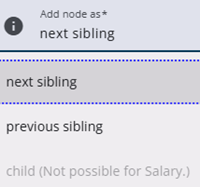
A new node can be added either before the selected node in the node tree or as a child node. Not all node types can be added as child nodes, and some node types do not allow child nodes at all.
Child nodes are typically used within Group nodes, as they help keep the nodes well organized.
The Confirm button closes the window and adds the node to the tree. All changes are saved permanently when the Save button is clicked.