


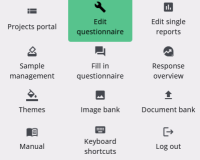
The 3×3 dotted icon in the top-right corner opens a menu that provides access to other areas of the software. All these items are visible when a project is selected. If no project is selected, less options are available.
Information about the current user and their last login can be found next to this icon, though it is not shown in the image.
The table below provides a brief explanation of each menu item.
| Item | Description |
| Projects portal | Displays all projects with options to manage them and their questionnaires. Read more |
| Edit questionnaire | Launches the Survey Editor to view and edit the questionnaire for the current project. Read more |
| Edit single reports | Opens the Single Reports Editor to manage the current project’s single reports. Read more |
| Sample management | Opens Sample Management to add and manage samples. Read more |
| Fill in questionnaire | Launches a window for filling out the questionnaire. |
| Response overview | Opens the Response Overview for examining reports and overviews. Read more |
| Themes | Displays the Themes Editor, allowing layout adjustments. Read more |
| Image bank | Launches the Image Bank, showing all saved images. |
| Document bank | Launches the Document Bank, showing all saved documents. |
| Manual | Opens the PDF manual with user guidance. |
| Keyboard shortcuts | Displays a overlay window listing all system shortcuts. |
| Log out | Logs the user out. |